Embermarks - A Firefox Extension
I created a Firefox Extensions!! It is called Embermarks and it should help you discovering old and and/or forgotten bookmarks. It is also open source.
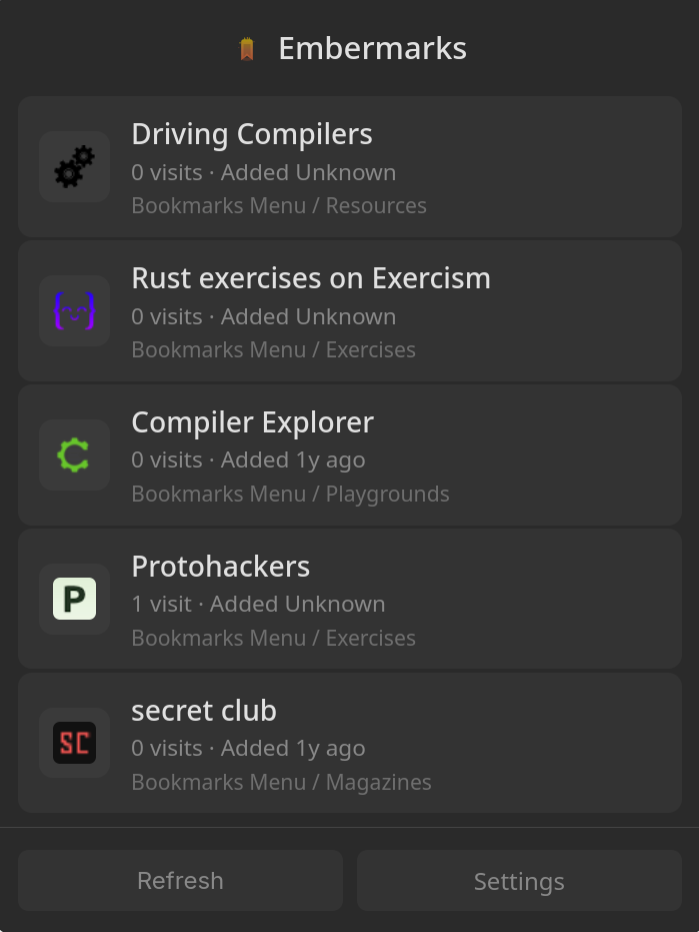
It goes through all your bookmarks (everything is happening locally, nothing leaves your computer) and stores all bookmarks which haven't been opened. You have options to say: "Show me all bookmarks which haven't at least been opened 2 times in the past 180 days) for example. You can either refresh the list on every click on the icon, or once a day etc.
And this is what it looks like:
Why I created it
Part of my routine in December to clean up my digital landscape (I left Apple Services and re-setup my Firefox profiles), is to really clean up and just take with me into the new year which I actually (use | read | consume | need).
Bookmarks was another one. I am usually quite organized when it comes to my bookmarks, and store every article or things I want to read or watch in my Are.na account. But, one of the folders I have is "Exercises". Websites I store which hopefully improve my skills. For example:
Besides that, I sometimes bookmark YouTube channels instead of subscribing to them. They pollute my "Subscription" view with videos I usually don't consume, but a few times a year, I need recommendations or get inspired, and then I go to these channels and "browse".
A year is busy, so I forget to actually go to these websites. And for some websites -real gems - I totally forgot I had them bookmarked. Hence, my next little side project: Embermarks.
I always created my own little Firefox extensions in the past - whenver a website annoys me or I needed something quick, and needed JS code do something for me, I put it in a Firefox extension and feel so proud and powerful. This time around though, I wanted to do something "official" and publish it to Firefox Addons.
I never really thought about how to properly create an extension, just quick and dirty. So here is a recipe for my future self in case I forget again what to do.
1. Starting a Firefox Extension Project
What files do you need? What's the minimal setup?
Key files:
manifest.json— The extension's configuration filebackground.js— Background script for core logicpopup/— UI that appears when clicking the extension iconoptions/— Settings pageicons/— Extension icons (16, 32, 48, 96px)
Links:
2. Thinking About Firefox Extensions
What can extensions access? What are the boundaries? How does the permission model work?
- Extensions run in an isolated context
- Permissions must be declared in
manifest.json - Different script contexts: background scripts, content scripts, popup scripts
- Communication via
browser.runtime.sendMessage()
Links:
3. Available Firefox Extension APIs
Which APIs did Embermarks use? Where to find what's available?
APIs used in Embermarks:
browser.bookmarks— Access and traverse bookmarksbrowser.history— Get visit counts and last visit timesbrowser.storage— Store settings and cachebrowser.runtime— Message passing between scripts
Links:
4. Prototyping the Extension
How to experiment with APIs? Where to test code before committing?
The browser.* APIs are only available to extensions, not in regular browser consoles. But you don't need to build anything — just create a folder with two files:
manifest.json
{
  "manifest_version": 2,
  "name": "Playground",
  "version": "1.0",
  "permissions": ["bookmarks", "history", "storage"],
  "background": {
    "scripts": ["background.js"],
    "persistent": true
  }
}
background.js
// Ready to play!To load it:
- Go to
about:debugging#/runtime/this-firefox - Click "Load Temporary Add-on..."
- Select your
manifest.jsonfile - Click Inspect → Console tab
Now you can experiment:
// See your bookmark structure
browser.bookmarks.getTree()

// Check visit data for a URL
browser.history.getVisits({url: "https://example.com"})

// Get all visits for a URL with timestamps
let visits = await browser.history.getVisits({url: "https://github.com"})
visits.map(v => new Date(v.visitTime))
"persistent": true keeps the background script running. Without it, Firefox unloads the script when idle, and clicking Inspect shows a "Fallback Document" with no API access.Links:
5. Splitting the Code
How to organize the codebase? What goes where?
Embermarks structure:
embermarks/
├── manifest.json
├── background.js        # Core logic, bookmark analysis
├── popup/
│   ├── popup.html       # Popup UI
│   └── popup.js         # Popup interactions
├── options/
│   ├── options.html     # Settings page
│   └── options.js       # Settings logic
├── shared/
│   ├── styles.css       # Shared styles
│   └── ui.js            # Shared UI components
└── icons/
6. Communication via Messages
Extensions have separate contexts that can't directly call each other's functions.
The background script has access to the APIs and runs persistently. The popup and options pages are just HTML/JS that come and go. They communicate via browser.runtime.sendMessage().
Sending a message (from popup or options):
const settings = await browser.runtime.sendMessage({ action: "getSettings" });Receiving messages (in background.js):
browser.runtime.onMessage.addListener((message, sender, sendResponse) => {
  switch (message.action) {
    case "getSettings":
      return getSettings();  // Return a Promise

    case "saveSettings":
      return saveSettings(message.settings);
  }
});

async function getSettings() {
  const result = await browser.storage.local.get("settings");
  return { ...DEFAULT_SETTINGS, ...result.settings };
}
The action field is just a convention — you're sending a plain object, so you can structure it however you like. The listener returns a Promise, which resolves back to the sender.
Links:
7. Bundling the Extension
How to package it for distribution?
Using web-ext:
> npm install -g web-ext
> web-ext build
This creates a .zip file in web-ext-artifacts/ ready for submission.
Links:
8. Testing Locally
How to load and test the extension during development?
Two ways to test:
- about:debugging - Load temporary extension
- Go to
about:debugging#/runtime/this-firefox - Click "Load Temporary Add-on..."
- Select your
manifest.json
- web-ext run - Auto-reload on changes
> web-ext runLinks:
9. Submitting to Firefox Add-ons
How to publish? What's the review process?
Steps:
- Create account at addons.mozilla.org
- Go to Developer Hub → Submit a New Add-on
- Upload your
.zipfile - Fill in listing details (description, screenshots, categories)
- Submit for review
Links: